Application Description
Clear BMW fault codes and monitor DPF status
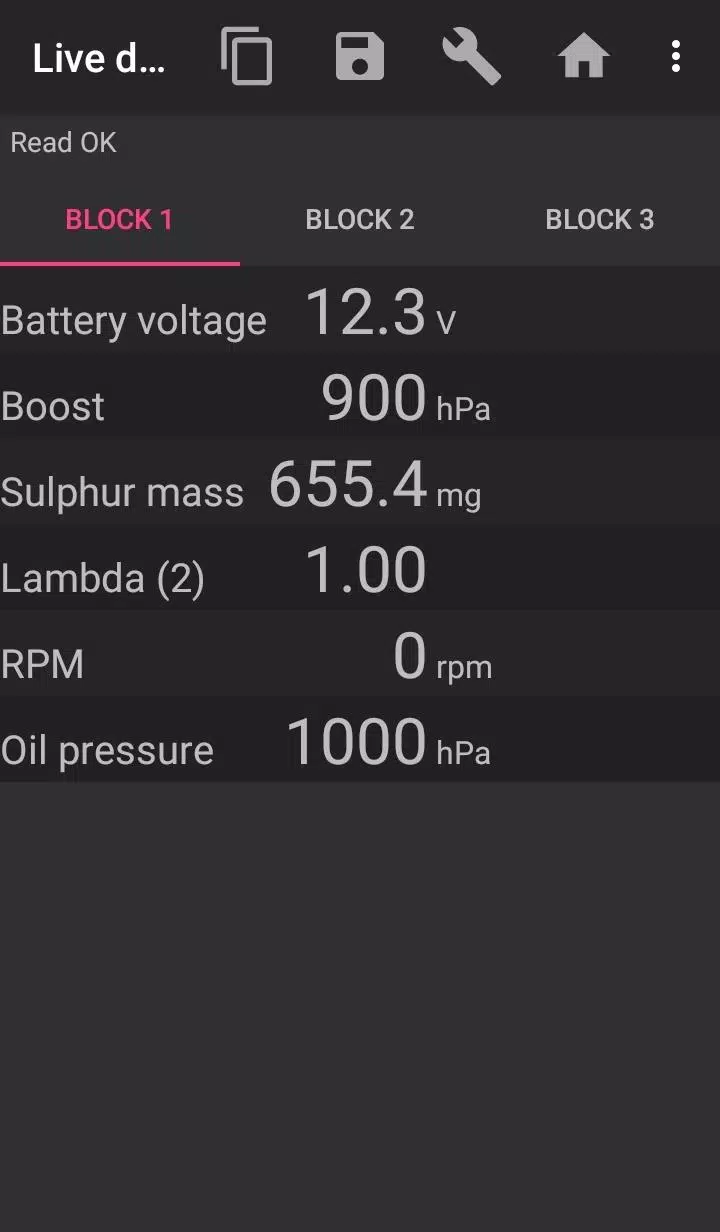
With bimmer-tool, you can read and clear fault codes, initiate DPF regeneration, view live engine data, and access many other functions for BMW vehicles.
For vehicles older than model year 2008, certain features are restricted, and a K+DCan USB cable connection is recommended. Using a wireless ELM adapter with pre-2008 models may result in limited functionality or connectivity issues.
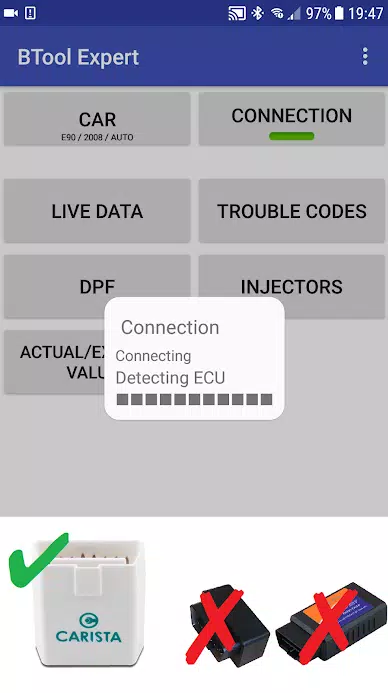
Note: A dependable OBD adapter is essential for this app. We recommend K+DCan cables, ENET adapters (for F/G series), or the following Bluetooth adapters:
- Vgate vLinker MC/FS/BM/FD https://www.vgatemall.com/products/
- UniCarScan UCSI-2000/USCI-2100: Select D-Can mode: MODE2 https://www.wgsoft.de/shop/obd-2-komplettsysteme/unicarscan/114/unicarscan-ucsi-2000-diagnoseadapter
https://www.bmdiag.co.uk/unicarscan-ucsi-2000-bluetooth-obd2-adapter
- Carista https://caristaapp.com/adapter
- Veepeak OBDCheck BLE https://www.veepeak.com/product/obdcheck-ble
Key features include:
- Check DPF regeneration status and detailed information
- Initiate DPF regeneration
- Reset DPF adaptation values (necessary after filter replacement)
- Monitor exhaust gas pressure
- Read injector adjustments
- View actual and expected values for air mass, intake manifold pressure, and fuel pressure
- Log data to CSV files for analysis
- Register battery replacement (without modifying battery properties)
- Reset lamp circuits blocked by short-circuit errors
- Reset oil and brake service intervals
Compatible OBD adapters
- K+DCan USB: The most reliable option. Requires a USB-OTG cable.
- ENET cable/WiFi Adapter: Ideal for F & G series. ENET cable connections also require a USB-C to Ethernet adapter.
- ELM327 Bluetooth: Bluetooth may be slower than USB. Only genuine ELM327 or PIC18-based adapters are supported. Compatibility with older engines may vary.
- ELM327 WiFi: Similar to Bluetooth, WiFi connections can be less stable. On some devices, you must disable mobile data to use the WiFi adapter.
For support, please email us. Our contact information is at the bottom of the page.
Quick start guide
1) Plug the adapter into the OBD II port
2) Turn the ignition on
3) Connect the adapter to your phone:
* USB: Use a USB-OTG cable. When prompted, select bimmer-tool.
* Bluetooth: Go to Bluetooth settings, search for devices, and pair with the adapter (PIN is typically 0000 or 1234).
* WiFi: Disable mobile data. Enable WiFi and connect to the adapter's network.
4) Open the app, go to 'Car', and select your model and year.
5) Navigate to 'Connection' and choose your connection type, adapter, and protocol.
6) Tap 'Connect'.
Limitations:
For pre-2008 models and e46/e39/e83/e53, a K+DCan cable is required, and only the engine ECU is accessible. Wireless ELM adapters may not connect.
Troubleshooting common issues
- Intermittent 'No response' errors in pre-2008 cars with BT/WiFi: Try enabling ATWM in advanced connection settings.
- Connection failure: If settings are correct but the app cannot connect, force-close all diagnostic apps (including bimmer-tool) or restart your phone and try again.
Why does the app need these permissions?
- Storage: For USB adapter support
- Photos/Media/Files: To create CSV files
- Bluetooth pairing and settings: For Bluetooth adapter functionality
- Full network access: For WiFi adapter operation
- Approximate location: Bluetooth can theoretically detect location, but the app does not collect or use this data.
What's New in the Latest Version 3.7.6-L
Last updated on Nov 10, 2024
Diesel idle speed adjustment
Throttle body control
Auto & Vehicles


 Download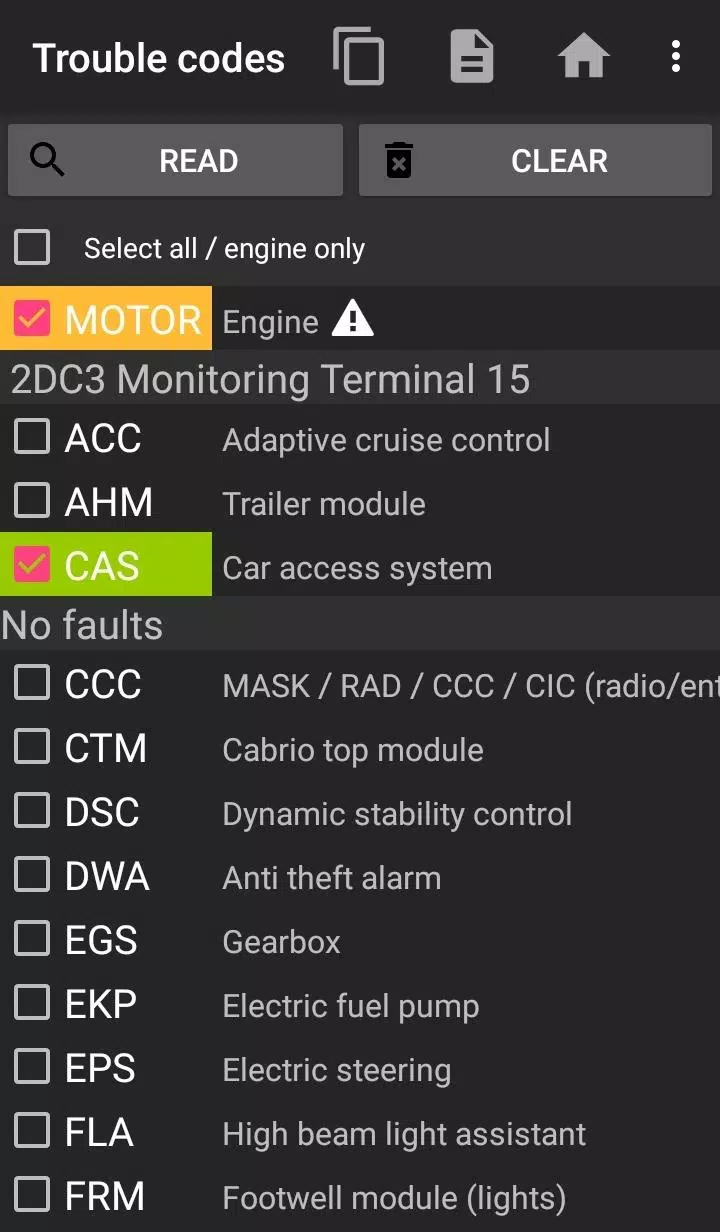
 Apps like bimmer-tool Lite