Application Description
Remove video backgrounds, erase photo backgrounds, and change video backgrounds with ease.
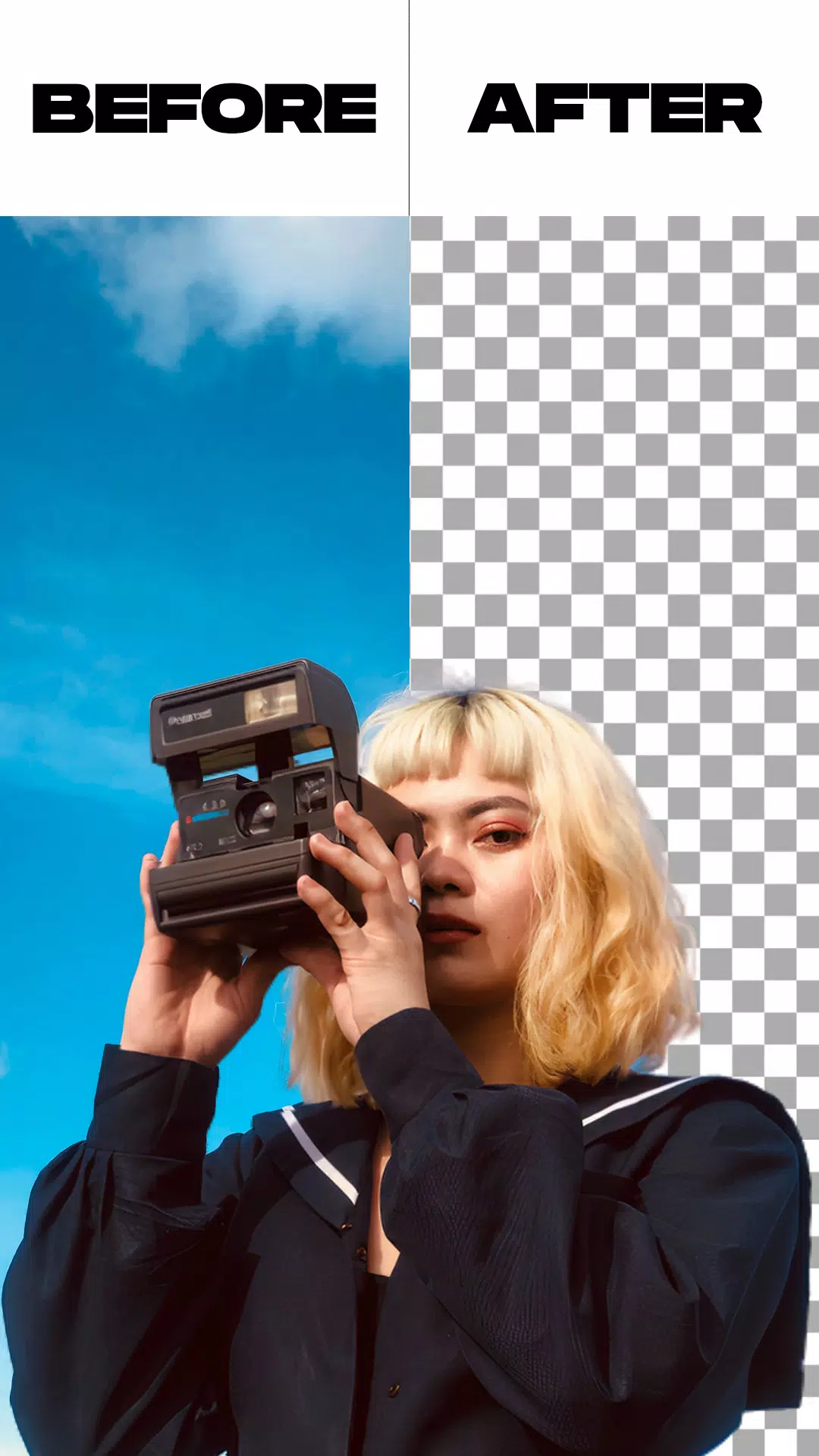
Remove Video Background is a practical application for anyone looking to delete the background from their videos and photos. This app enables you to erase backgrounds from your videos and replace them with a new one, whether captured by your camera or selected from your gallery. It offers two primary modes and includes extra features like image background removal and the ability to substitute a green screen with a background of your choice.
Remove Video Background is a free app for changing video backgrounds, packed with functionalities such as replacing your background with a solid color. It comes with thousands of colors to choose from, including gradient options. Simply pick your favorite and transform your camera video's backdrop instantly.
Beyond colors and gradients, this video background remover allows you to set an image from your gallery or even another video as your new background. With just one click, your video's scenery is completely changed.
The green screen effect supports both front (selfie) and rear cameras. Switch between them with a single tap, allowing you to alter the background for selfie videos as well as those shot with the back camera.
The green screen is a beloved tool for creators who enjoy making more elaborate and entertaining videos. But what exactly is a green screen? It's a filter that provides a variety of background options to use in videos shared on social networks.
This feature mirrors the green backdrop used in superhero films, for instance, which serves as a scene for actors. As expected, the tool is hugely popular online. But do you know how to use the effect yourself?
Features:
- Remove the background from an image using two methods: automatic background removal or manual background removal.
- Trim your video before initiating the background removal process.
- Remove the background from a live camera video or from a video in your gallery.
- Option to change the green screen; you can replace the green screen background with any background you prefer.
How to Use:
- Open the Remove Video Background app.
- Choose between two options: the first for removing photo backgrounds, the second for removing video backgrounds.
- After selecting your media file, the app will automatically begin removing the background from your video or photo. You only need to wait for the process to complete.
- Once the background is removed, you can change the background of your video or photo as desired. Select from the app's built-in backgrounds or choose one from your gallery; the choice is yours.
- When finished, simply click the export button. The app will save your edited video or photo directly to your gallery.
What's New in the Latest Version 1.5.4
Last updated on May 26, 2024
* Minor bug fixes.
Beauty



 Download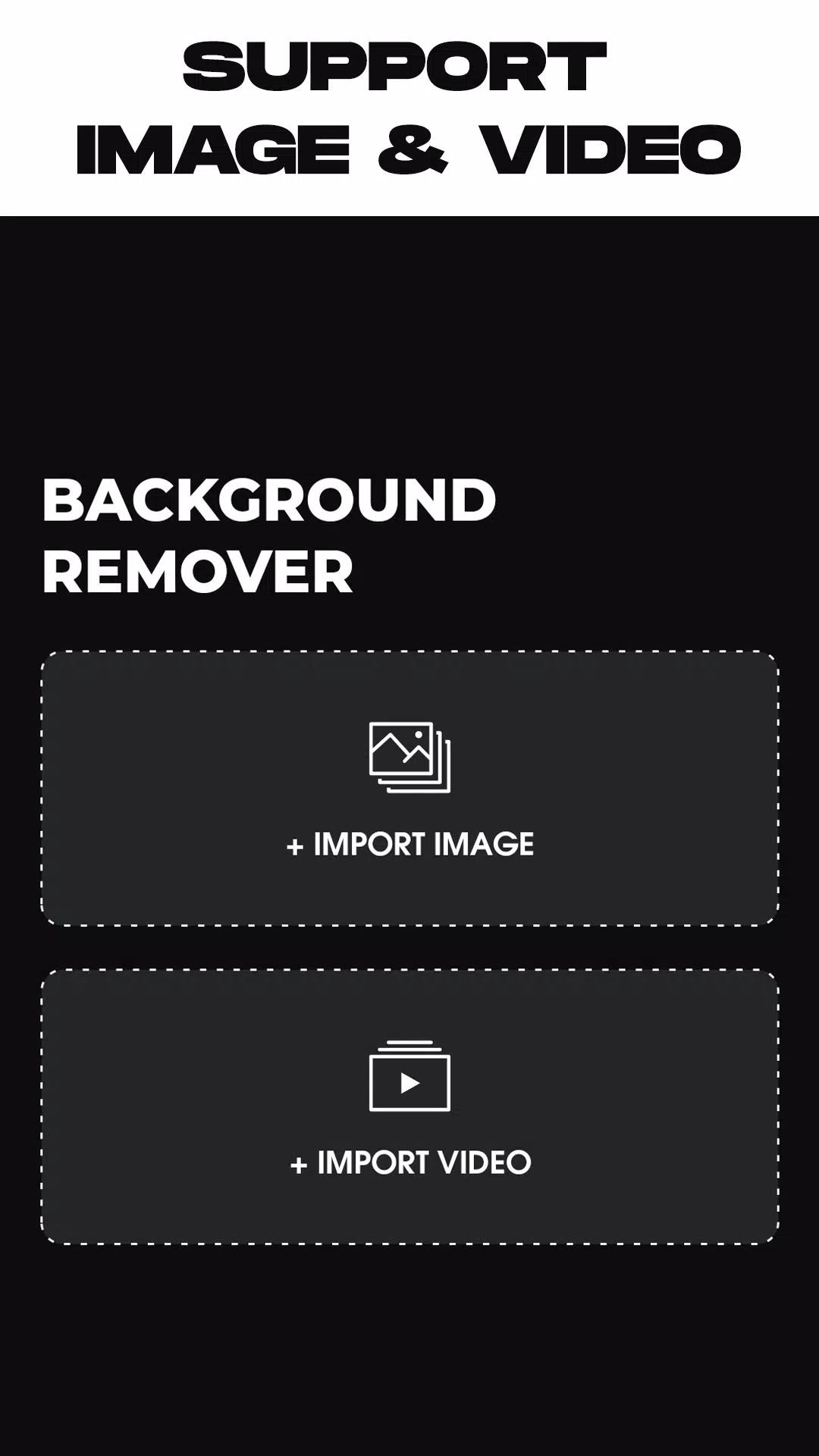


 Apps like Remove Background From Video