應用說明
Design your own custom cross stitch patterns. 設計您自己的定製十字繡圖案。
Cross Stitch Pattern Creator 十字繡圖案建立器
Includes 4 sample cross stitch patterns. Free to download. Activation costs $2.99. 包含4個示例十字繡圖案,免費下載。啟用費用為$2.99。
Best used on a tablet due to cross stitch pattern dimensions. 由於十字繡圖案尺寸較大,建議在平板電腦上使用效果最佳。
Craft unique cross stitch patterns with the Cross Stitch Pattern Creator 使用十字繡圖案建立器打造獨特的十字繡圖案
To begin creating cross stitch patterns, click the Create a Cross Stitch Pattern button. 開始建立十字繡圖案時,請點選“Create a Cross Stitch Pattern”按鈕。
The Cross Stitch Pattern Editor will open. Fill the grid squares with DMC floss colors. 十字繡圖案編輯器將開啟。用DMC繡花線顏色填充網格方塊。
You can even create custom colors if desired. 如有需要,您還可以建立自定義顏色。
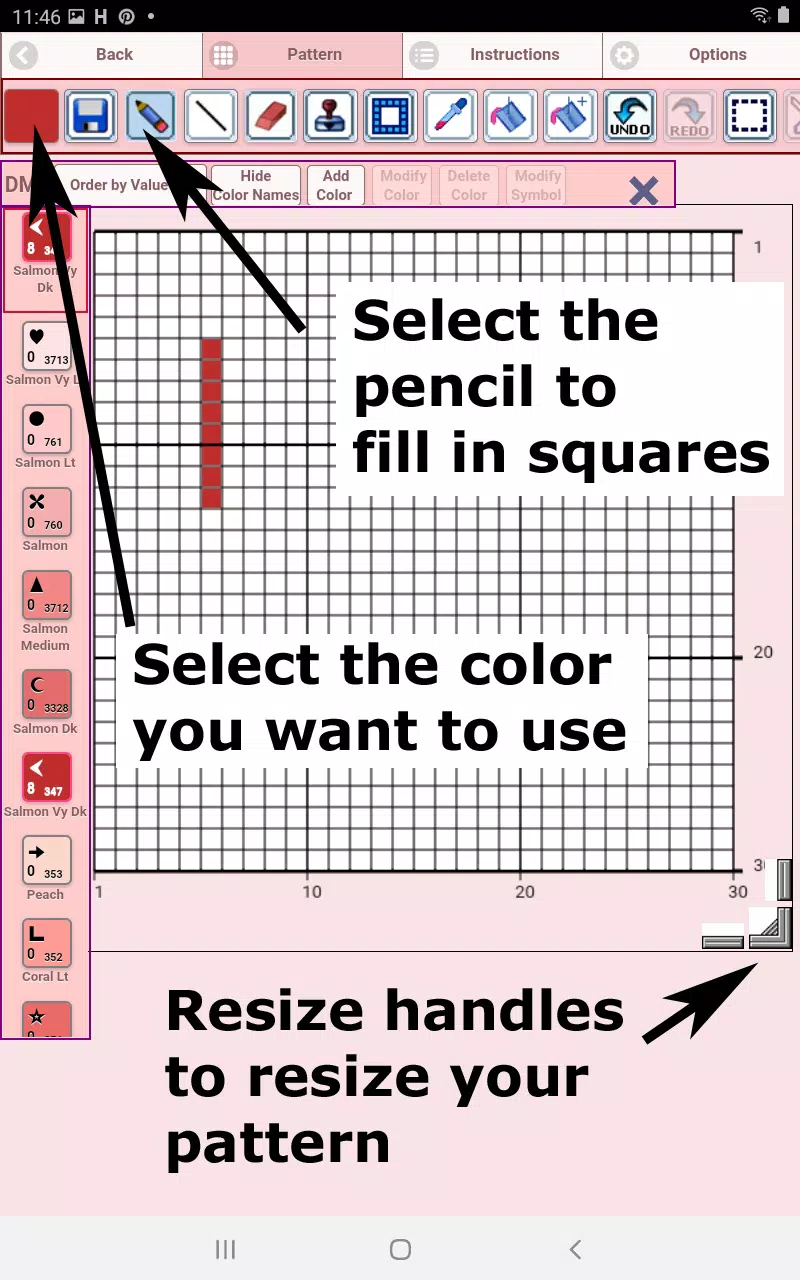
Getting started - Use the pencil tool to fill squares in your pattern. Use the eraser to remove filled squares. 入門指南:使用鉛筆工具填充圖案中的方塊;使用橡皮擦移除已填充的方塊。
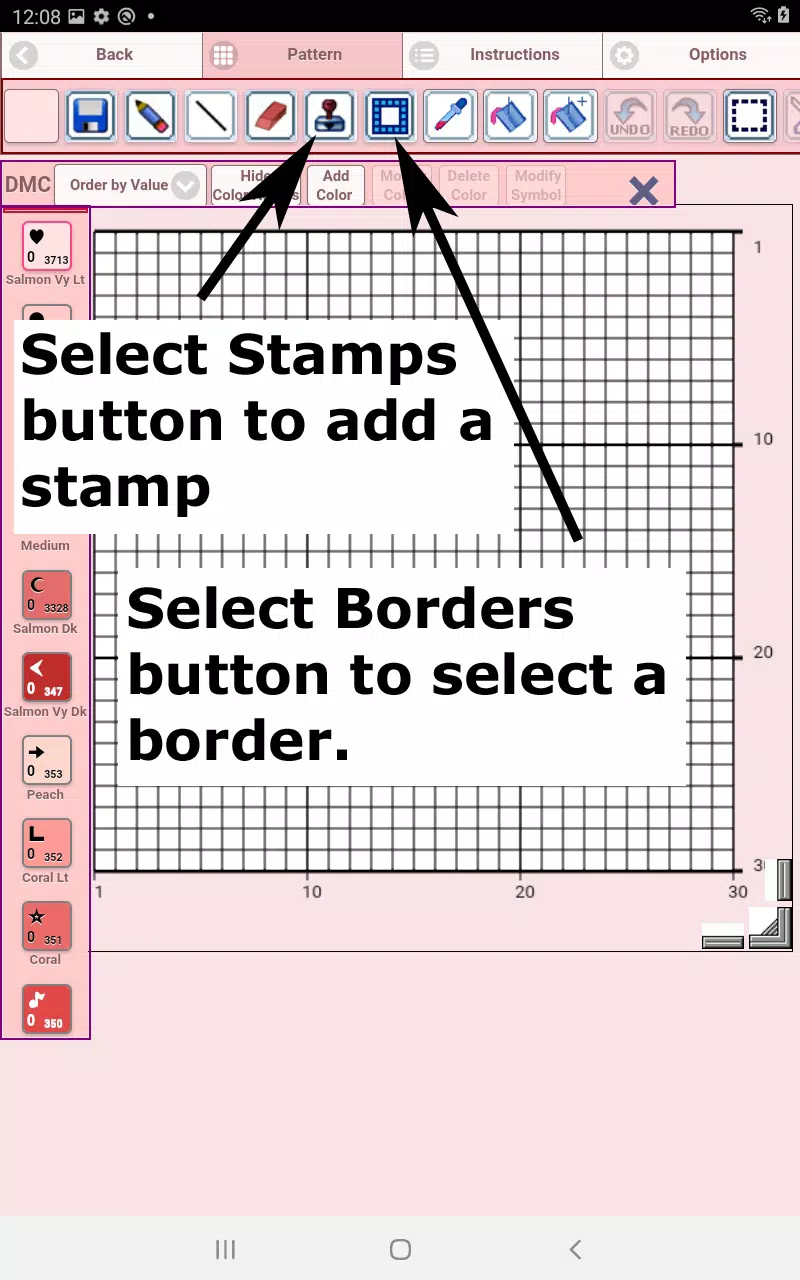
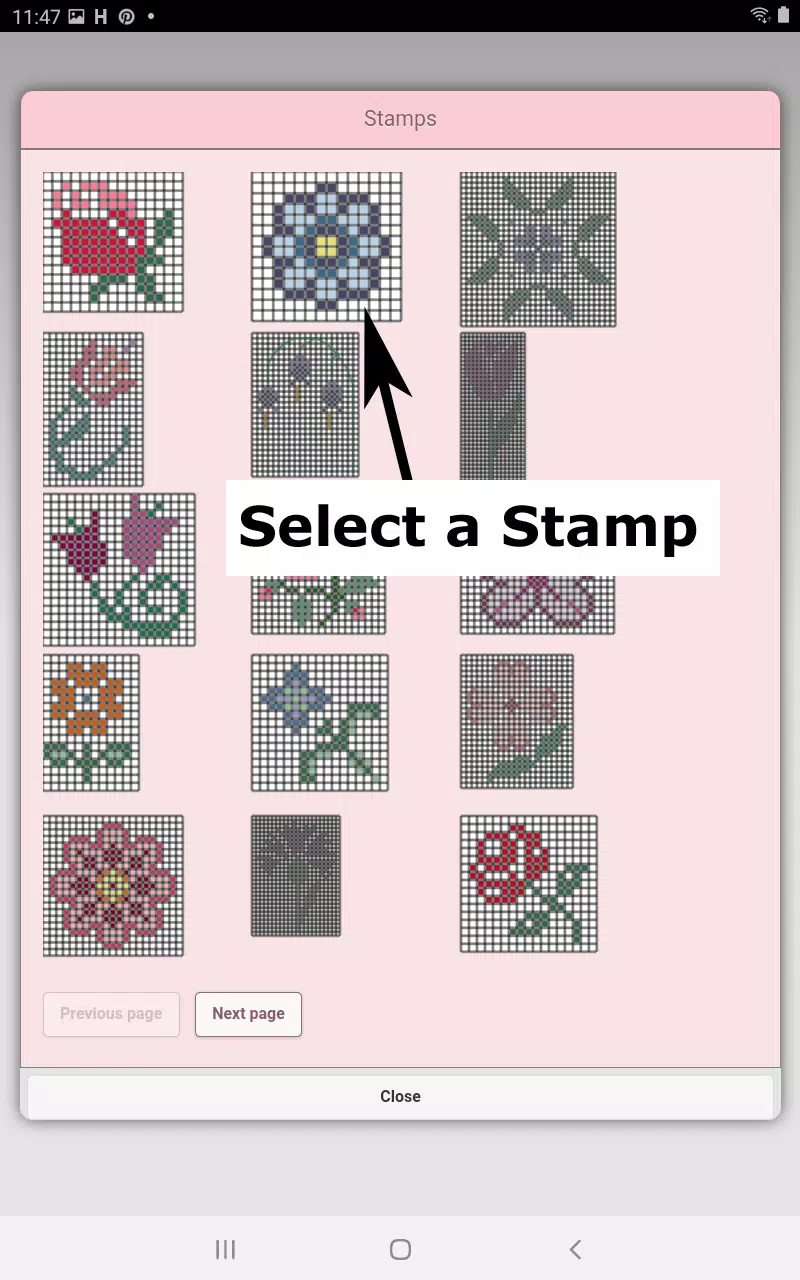
Choose from over 80 decorative stamps and borders to enhance your cross stitch pattern. 從超過80種裝飾印章和邊框中選擇,以增強您的十字繡圖案效果。
The button bar tools, from left to right, include: 按鈕欄工具從左到右包括:
DMC Floss Color button - Select your preferred floss color DMC繡花線顏色按鈕——選擇您偏好的繡花線顏色
Save button - Save your pattern 儲存按鈕——儲存您的圖案
Pencil button - Fill squares in your cross stitch pattern 鉛筆按鈕——填充十字繡圖案中的方塊
Eraser button - Remove filled squares and backstitch lines 橡皮擦按鈕——移除已填充的方塊和回縫線條
Backstitch button - First choose your backstitch color, then add backstitch lines to your pattern 回縫線按鈕——先選擇回縫顏色,然後為圖案新增回縫線條
Backstitch move button - Drag selected backstitches to new positions 移動回縫線按鈕——將選定的回縫線拖動到新位置
Backstitch move stitch end - Select a backstitch to reveal blue endpoint handles, then reposition either end 調整回縫端點——選擇一條回縫線以顯示藍色端點手柄,然後重新定位任一端點
Stamps button - Apply small decorative stamps to your cross stitch pattern 印章按鈕——在十字繡圖案上應用小型裝飾印章
Borders button - Add customizable borders that automatically frame your pattern 邊框按鈕——新增可自定義的邊框,自動為您的圖案新增框架
Dropper button - Sample colors from your pattern for reuse 吸管工具按鈕——從您的圖案中取樣顏色以便重複使用
Bucket button - Fill selected areas with your current color choice 填充桶按鈕——用當前選定的顏色填充所選區域
Bucket+ button - Replace existing colors with your currently selected color 填充桶加號按鈕——將現有顏色替換為您當前選擇的顏色
Undo button - Reverse your last pattern modification 撤銷按鈕——撤消您上次對圖案的修改
Redo button - Restore previously undone changes 重做按鈕——恢復之前被撤消的更改
Selection box button - Define pattern areas for cutting, copying, rotating, or flipping 選區框按鈕——定義用於剪下、複製、旋轉或翻轉的圖案區域
Cut button - First select an area with the selection tool, then remove it using cut 剪下按鈕——先用選擇工具選擇一個區域,然後使用剪下功能將其移除
Copy button - After selecting an area, copy it to your clipboard 複製按鈕——選定一個區域後,將其複製到剪貼簿
Paste button - Insert copied sections into your pattern and position them as needed 貼上按鈕——將複製的部分插入您的圖案並根據需要定位它們
Rotate button - Rotate selected areas or the entire pattern 旋轉按鈕——旋轉所選區域或整個圖案
Flip right/left button - Mirror selected sections or the complete pattern horizontally 水平翻轉(右/左)按鈕——映象所選部分或完整圖案的水平方向
Flip top/bottom button - Mirror selected sections or the complete pattern vertically 垂直翻轉(上/下)按鈕——映象所選部分或完整圖案的垂直方向
Zoom in button - Enlarge pattern view 放大按鈕——放大圖案檢視
Zoom out button - Reduce pattern view 縮小按鈕——縮小圖案檢視
Symbols button - Show unique symbols representing each color value 符號按鈕——顯示代表每種顏色值的獨特符號
Picture button - Convert device images into cross stitch patterns 圖片按鈕——將裝置中的影象轉換為十字繡圖案
Social media button - Share patterns through email, text, and other platforms 社交媒體按鈕——透過電子郵件、簡訊和其他平臺分享圖案
Resize handles - Drag the corner controls to adjust your pattern dimensions 調整大小手柄——拖動角落控制點以調整您的圖案尺寸
Option settings - Customize grid colors, switch between solid and X fill styles, hide row/column counters 選項設定——自定義網格顏色,在實心填充和X形填充樣式之間切換,隱藏行/列計數器
Instruction page - View DMC color requirements and finished sizes for various Aida cloth counts 說明頁面——檢視不同Aida布針數所需的DMC顏色及成品尺寸
Finished Product page - Preview your completed cross stitch design and experiment with different fabric colors 成品預覽頁——預覽您完成的十字繡設計,並嘗試不同的布料顏色
藝術與設計



 下載
下載 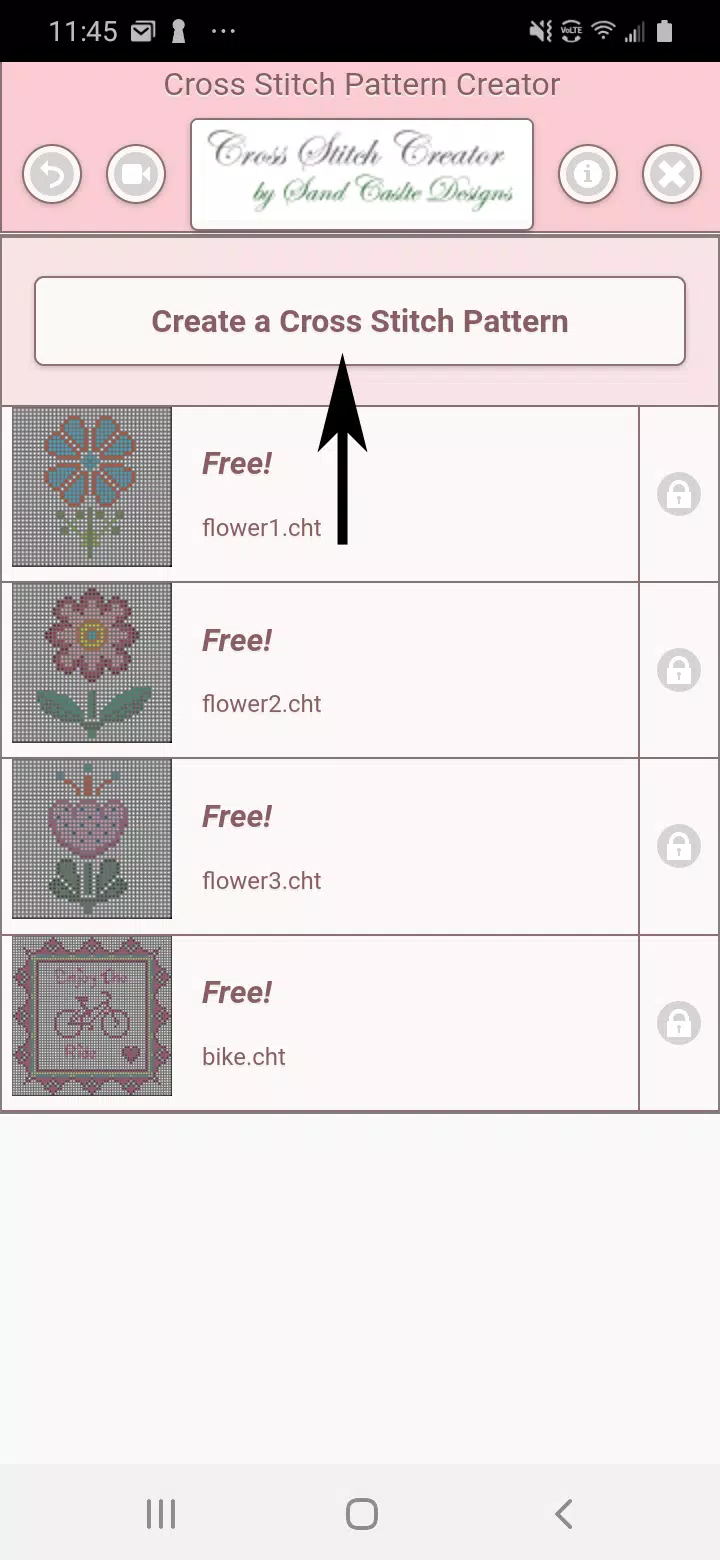
 Cross Stitch Pattern Creator 類似應用